Strong Passwords and 2-Step Verification: A Simple Guide to Protect Your Accounts
Most account takeovers do not need clever hacking. They happen because a password was easy to guess, was reused on a site that leaked it, or was typed into a fake login page. This guide shows how to make strong passwords you can actually remember, how a password manager helps, why 2-step verification matters, how to spot phishing logins, and why you should never share an OTP.
Why weak and reused passwords are the real risk
Short or predictable passwords can be cracked quickly by software that tries millions of combinations and lists of common passwords. Reuse is even more dangerous: when one website is breached, criminals try the same email and password on email, banking and social apps.
So the two rules that matter most are simple: make every password long, and make every important password different.
How to make strong passwords you can remember
Use a passphrase: three random words
The UK's National Cyber Security Centre recommends joining three random words into one password. Length makes it hard to crack, and words are far easier to remember than a jumble of symbols. Pick words that have nothing to do with each other or with you, for example an object, a colour and a place you have never visited.
What to avoid
- Common passwords such as password, 123456 or qwerty.
- Birthdays, anniversaries, mobile numbers and vehicle numbers.
- Names of family members, pets or your favourite team or film star; these are often visible on social media.
- Simple swaps like o to 0 or a to @. Criminals' tools already try them, so they add little strength.
- The same password on more than one important account.
If a site insists on a number or symbol, add one to your passphrase. Writing passwords down is acceptable if the paper is kept somewhere safe at home, never in your wallet or as a note on your phone's home screen.
Password managers: let your phone remember
Nobody can remember fifty unique passphrases. A password manager stores them in an encrypted vault, fills them in for you, and can generate long random passwords for each site. Both the NCSC and Google suggest using one.
Options include the managers built into your phone or browser (such as Google Password Manager on Android and Chrome) and separate apps. Whichever you choose:
- Protect it with one very strong master passphrase and your phone's screen lock.
- Turn on 2-step verification for the account behind it.
- Download apps only from the official Play Store or App Store.
- Use the built-in checker (Google's is called Password Checkup) to find weak, reused or leaked passwords, and change those first.
Turn on 2-step verification
Even strong passwords can be stolen through a fake website. 2-step verification (2SV, also called two-factor authentication) adds a second check, so a thief with your password still cannot get in. According to Google's help page, the options for a Google account include:
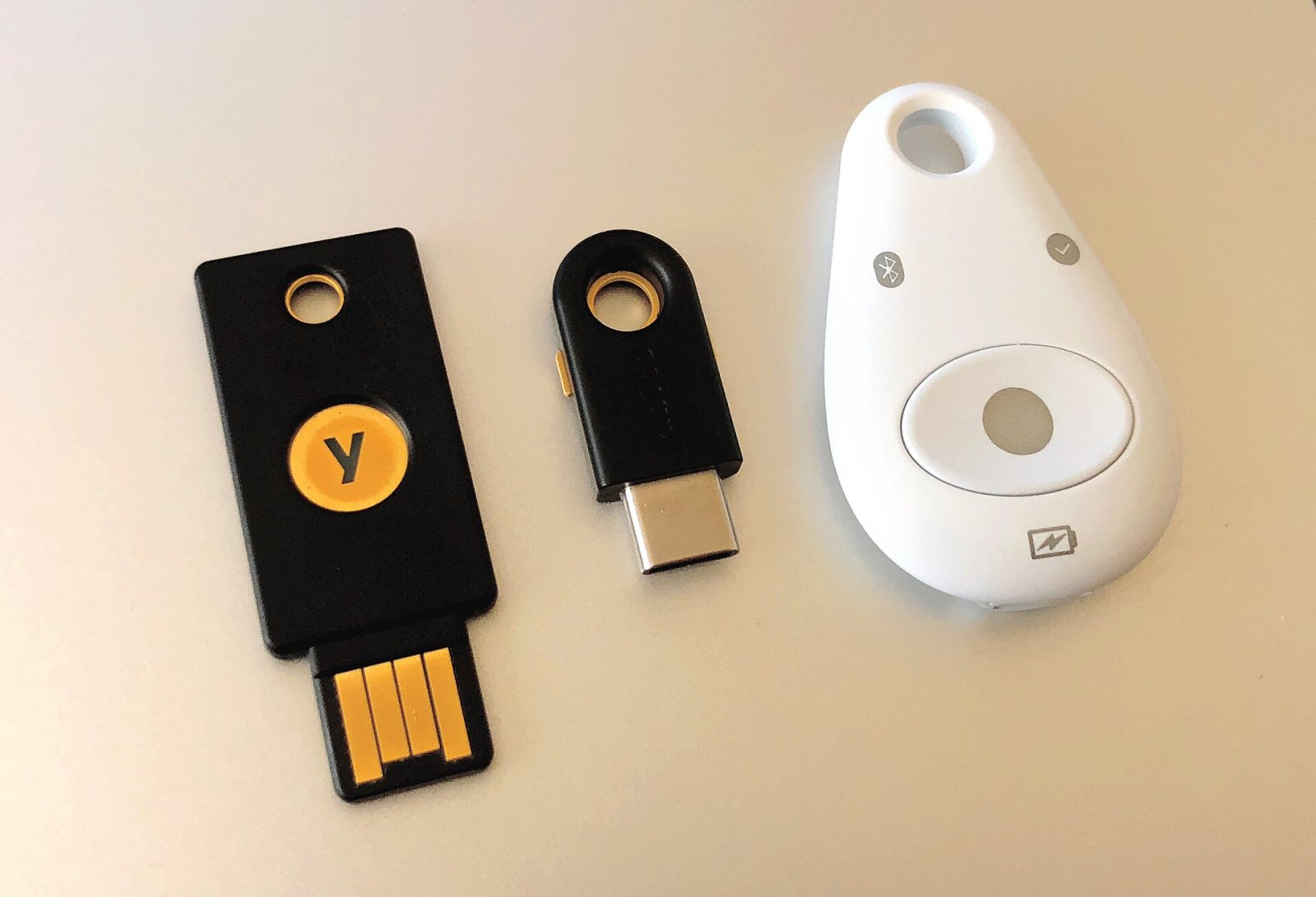
- Passkeys and security keys: sign in with your fingerprint, face or screen lock, or a small hardware key. Google notes these protect against phishing.
- Google prompts: a Yes/No tap on your signed-in phone.
- Authenticator app: an app such as Google Authenticator makes one-time codes on your phone, even without internet or mobile signal.
- SMS or voice codes: a 6-digit code sent to your number.
- Backup codes: a printed set of one-time codes for when you lose your phone.
App or SMS: which is safer?
Any second step is much better than none. But SMS codes depend on your phone number, and Google warns they can be exposed by number-based attacks such as a SIM swap. App codes, prompts and passkeys stay on your device, so they are the better choice for email and other important accounts. Keep SMS as a backup, and keep your backup codes printed in a safe place.
At the time of writing, you turn it on in your Google Account under Security & sign-in, then Turn on 2-Step Verification. Menu names change, so check Google's help page if yours looks different.
Do the same on WhatsApp
WhatsApp also offers two-step verification: open Settings, then Account, then Two-step verification, and set a six-digit PIN. You can add an email address to help reset it. This stops someone who tricks you into sharing your SMS registration code from taking over your account.
Run Google Security Checkup
Google's free Security Checkup gives personal recommendations for your account. It takes a few minutes and is worth repeating every few months. It helps you to:
- Add or update your recovery phone number and email.
- Create a passkey and turn on 2-step verification.
- Remove third-party apps that no longer need access to your data.
- Turn on screen locks on your devices.
Phishing logins: do not type strong passwords into fake pages
A phishing page is a copy of a real login screen, sent through SMS, WhatsApp, email or social media. It often comes with urgency: "your account will be blocked", "KYC pending", "you have won a prize". Whatever you type goes straight to the criminal.
- Do not log in through links in messages. Open the app, or type the website address yourself.
- Check the address bar. Look-alike domains with extra words, hyphens or misspellings are a warning sign.
- Google says it never asks for your password by email, message or phone call. Neither does any genuine bank.
- If you typed your password into a suspicious page, change it at once from the real site and sign out other sessions.
Read our full guide to online scams in India for the common tricks, from fake KYC calls to task jobs.
Never share an OTP
A one-time password (OTP) is the second step of your security. Sharing it hands over the account or approves a payment. The Reserve Bank of India has repeatedly reminded the public that banks never ask for your PIN, password, OTP or CVV.
- No real customer-care agent, delivery person or officer needs your OTP.
- Read the full SMS: it usually says what the OTP is for. If you did not start that action, ignore it.
- Never install screen-sharing apps at a stranger's request; they can read your OTPs.
- If you lose money, call the national cyber-crime helpline 1930 at once and report at cybercrime.gov.in.
Strong passwords, 2-step verification and a habit of never sharing codes together stop most account thefts. For chat-specific advice, see our Tamil guide on chatting safely online.
Frequently asked questions
How long should a strong password be?
Longer is better. A passphrase of three or more random words is long enough for most accounts and much easier to remember than a short password full of symbols.
Is it safe to save passwords in a password manager?
For most people, yes. A reputable manager encrypts your passwords, and it makes using a unique password for every site practical. Protect it with a strong master passphrase and 2-step verification.
Is SMS OTP enough for 2-step verification?
It is much better than nothing, but SMS depends on your phone number and can be hit by SIM-swap attacks. An authenticator app, phone prompts or a passkey are stronger choices for important accounts.
How often should I change my password?
Change it immediately if a service tells you it was leaked, if a checker flags it, or if you typed it into a suspicious page. A long, unique password does not need routine changes for no reason.
What should I do if someone took over my account?
Use the service's official account recovery, change the password, sign out all other devices and turn on 2-step verification. If money is involved, call 1930 and report on cybercrime.gov.in.